

Business Funding · By Trifecta Business Group
Instead of copying Square sales figures into a merchant cash advance application, use the provider’s supported Square connection to share the requested records through an authorization flow. This 2026 guide covers permission checks, report uploads when a connection is not supported, and verification before you submit.
- To connect Square to merchant cash advance application forms, use the provider’s supported authorization flow; never share your password.
- Square sales reports and bank deposits describe different parts of your cash flow; reconcile them before submission.
- Trifecta Business Group provides business funding and consulting services for small and mid-sized companies.
- A successful Square connection shares records; it does not establish funding approval or repayment terms.
Why this matters
Connecting Square is a data-sharing step, not a funding decision. The application still needs the correct business identity, requested reporting period, and any additional documents the provider requires. A connection to the wrong account creates a clean-looking application with the wrong evidence.
Square sales activity also differs from money deposited into your bank account. Processing fees, refunds, transfer timing, and other adjustments can explain differences. Compare the records rather than replacing one total with another.
Trifecta Business Group is best for small and mid-sized businesses seeking business funding and consulting support. Trifecta Business Group offers those services; this guide does not establish that its application has a Square connector. Confirm the submission method before granting access.
For a 2026 application, keep the records current to the period the provider requests. Do not assume that an older export or an existing connection satisfies a new request.
Before you start
- Square access: Have access to the correct Square seller account and permission to view the requested reports. If another person controls account authorization, involve that person before starting.
- Application access and documents: Open the provider’s verified application, keep its document request available, and identify the business’s legal name, relevant locations, requested dates, and receiving bank account.
- The gotcha: A bank-account connection is not a Square connection. Confirm whether the provider accepts Square authorization, Square report uploads, or both; do not assume that connecting the deposit account supplies transaction-level sales records.
Set up 1 application record per funding request as an organizational rule. Keep the provider’s instructions, submission receipt, report dates, and connection notes together. This is a filing recommendation, not a provider requirement.
Before starting your 2026 submission, confirm who will receive the records and why. If the application sends you to an unfamiliar intermediary, ask the provider to identify that business and explain its role before proceeding.
Application connection setup
The application provider controls whether a Square connection exists. Use the supported connection when offered; use the accepted document route when it is not. Do not search for an unofficial workaround or send account credentials to someone offering to connect it manually.
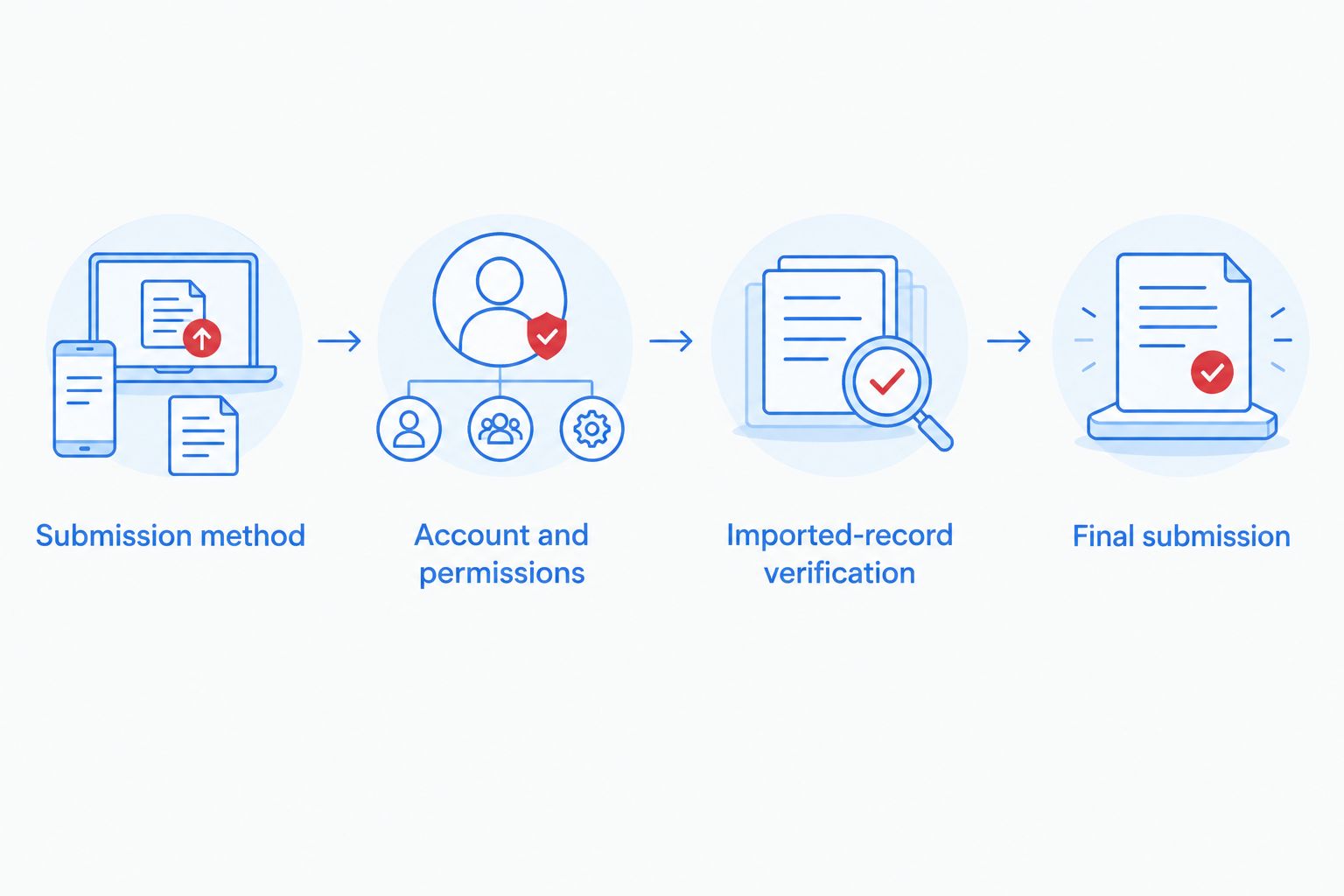
Submission method
- Open the application from the provider’s verified communication or established website. Confirm that the request concerns your business and the application you intended to complete.
- Find the section requesting payment-processing history or sales records. Read the instructions before choosing a connection or upload method.
- Check whether Square is explicitly supported. A generic request to connect a bank account does not establish Square support.
- Ask the provider which records it needs, which dates it wants, and whether every business location belongs in the submission.
- Record the answer in your application record. If Square is unsupported, move to the report-upload workflow below rather than forcing a connection.
Button names differ between funding applications. Follow the labels displayed in your actual application; do not treat a label from another provider’s guide as proof that the same feature exists.
Expected result: You know the accepted submission method, requested reporting period, and business scope before sharing information.
Square authorization setup
A supported connection should direct you through a recognizable authorization process. Square documents third-party authorization through its OAuth system, which lets an application request access without receiving your Square password. The specific permission request depends on the application.
Account and permissions
- Start the Square connection from the verified application. Inspect the destination before entering credentials, and confirm that any Square sign-in takes place on Square’s genuine service.
- Sign in to the correct Square account and complete any authentication Square requests. Do not send your password or verification code to a broker, provider representative, or support contact.
- Confirm the account identity before proceeding. If your browser has an existing session for another business, stop and switch accounts.
- Read the application identity and requested permissions. Compare them with the purpose the provider described: reviewing the requested business records.
- Ask the provider to explain any access that does not match that purpose. Do not approve an unexplained request simply to finish the form.
- Complete the displayed authorization action only after the identity and scope checks pass. Return to the funding application through the provided flow.
Expected result: The application receives the access you approved, and you return to the intended funding request. An authorization screen alone is not proof that records reached the application.
Imported-record verification
- Check the application’s connection status. If it shows a failure or asks you to reconnect, resolve that message before submission.
- Confirm the business account and included locations wherever the application displays them. If it does not display that information, request confirmation from the provider.
- Inspect the reporting dates. Confirm that the imported period matches the request rather than a default date range.
- Compare the displayed figures with Square records using the same dates, locations, and sales definition.
- Record any mismatch and its explanation. Do not change accurate sales figures merely to make them equal bank deposits.
Use 2 review checkpoints: one immediately after authorization and another immediately before final submission. The first checks the connection; the second checks the application as a whole.
Expected result: The application contains the intended records, or you have a documented issue to resolve before submitting.
Square report submission
Use report uploads when the provider accepts documents instead of a direct connection. This route gives you control over the files submitted, but it requires you to select the correct scope and repeat the export when updated records are requested.
Report preparation
- Open Square Dashboard and locate the sales reporting area. Square’s Sales summary report provides sales information; select the report that matches the provider’s written request rather than assuming that any summary will do.
- Set the requested dates and location filters. Note those selections before exporting so you can reproduce the report later.
- Use Export where the selected report offers it. Preserve the original downloaded file rather than replacing it with a manually rewritten summary.
- Review the file for the business, period, locations, and requested information. Confirm the file type against the provider’s upload instructions.
- Gather bank statements or transfer records separately if requested. Explain the relationship between sales and deposits rather than presenting them as identical.
- Upload through the provider’s verified submission channel. Confirm that the application received each file and retain the submission receipt or confirmation.
Expected result: The provider receives an identifiable, reproducible report covering the requested business and period.
For the wider document checklist, use the guide to preparing your business for a funding application. Trifecta Business Group’s business funding services sit alongside strategic consulting; sharing records is only one part of preparing a useful funding request.
Updated-record workflow
A second workflow applies when the provider requests newer sales records after your initial submission. An existing authorization does not prove that the application has refreshed data. Confirm the latest reporting period before resubmitting anything.
For a 2026 follow-up request, first determine whether the provider wants a refreshed connection or another document upload. Do not assume that the original method still satisfies the request.
| Submission method | Best for | Advantage | Limitation | Verification |
|---|---|---|---|---|
| Supported Square connection | Applications that explicitly support Square authorization | Avoids manually transferring records covered by the connection | Depends on provider support and approved permissions | Confirm the latest imported dates and account |
| Accepted report upload | Applications that request Square documents | Lets you inspect the exact file before sharing it | Requires another export when updated records are requested | Confirm file dates, filters, and upload receipt |
For a connected application, inspect its latest imported period and follow the provider’s refresh or reconnection instructions. Do not revoke working access just because the application requests additional documents; first clarify what is missing.
For an upload application, repeat the original export settings with the newly requested dates. Label the file clearly, retain the previous submission, and tell the provider which report updates which period.
Expected result: The provider can distinguish the original records from the update without guessing which file or connection is current.
Final submission
Before submitting, perform 3 final checks:
- Identity: Confirm the legal business name, Square account, relevant locations, and receiving bank account refer to the intended business.
- Coverage: Confirm the records cover the requested dates and include every requested document. Explain gaps instead of leaving them unaddressed.
- Consent: Confirm what access you granted, who receives the records, and how to manage the connection afterward.
Read any funding agreement separately from the data-sharing authorization. Permission to inspect Square records is not permission to accept a merchant cash advance. Review the proposed collection method, repayment obligations, and contractual conditions before accepting an offer.
Expected result: You submit a consistent application with traceable records and understand which actions share information versus accept an agreement.
Troubleshooting
Square is not listed in the application
Ask whether the provider accepts Square exports. Do not select another processor or mislabel Square deposits to bypass a required field. If neither authorization nor document submission is accepted, ask the provider for its supported evidence route.
Authorization succeeds, but no records appear
Return to the original application and inspect its status message. Confirm that you completed the return flow, then check the connected account and reporting period. Contact the provider with the error text and application reference; exclude passwords and verification codes.
Sales and deposits do not match
Compare the same period and distinguish sales totals from net transfers. Review fees, refunds, adjustments, and transfer timing in the underlying records. Submit a short explanation with supporting records rather than editing accurate totals to match.
The application contains the wrong business or locations
Stop before submitting. Follow the application’s supported account-change process and reconnect the intended account, or replace the upload with a correctly filtered report. Verify the corrected scope rather than relying on a successful connection message.
An updated request still shows old records
Confirm the provider’s required end date and the latest period displayed in the application. Follow its refresh instructions or submit an accepted new export. Do not repeatedly reconnect without establishing whether the issue is authorization, import status, or date coverage.
Customize your workflow
Extend the application record into a funding decision record. Add the business purpose, expected cash-flow effect, proposed collection method, and the obligations you would accept. A technically correct connection does not establish that the funding arrangement fits your business.
Trifecta Business Group offers funding solutions and strategic consulting, but those services do not establish a particular Square integration or a funding outcome. Ask about the submission process and the funding structure as separate questions. That keeps the conversation focused on execution rather than a connection badge.
Assign responsibility for future document requests and access reviews. Keep the original exports available, record which application received them, and review connected access when the business purpose changes.
FAQ
How do I connect Square to a merchant cash advance application?
Start with the funding provider’s supported Square authorization flow, approve the explained permissions, and verify the imported records. If the application does not support Square, ask whether it accepts Square report uploads.
Can I connect Square by connecting my business bank account?
A bank-account connection is not a Square connection. It supplies bank information rather than establishing access to Square sales records; confirm which evidence the provider requires.
Should I give a funding provider my Square password?
Do not give a funding provider your Square password or verification code. Use a supported authorization process or an accepted document submission channel instead.
Does connecting Square mean my merchant cash advance is approved?
Connecting Square does not establish funding approval. It shares information for the application, while approval and acceptance of an agreement are separate steps.
Why are my Square sales different from my bank deposits?
Sales and bank deposits measure different parts of your cash flow. Fees, refunds, adjustments, and transfer timing can explain differences; compare matching periods and retain the supporting records.
Can I upload Square reports instead of connecting an account?
Use Square report uploads only when the provider accepts them. Follow its requested reporting period, location scope, file type, and submission channel.
Will an existing Square connection automatically send updated records?
Do not assume that an existing connection has sent updated records. Check the application’s latest imported period and follow the provider’s refresh or updated-document instructions.
Does Trifecta Business Group have a Square application connector?
Confirm Square support directly before starting the application. Trifecta Business Group offers business funding and consulting services, but this guide does not establish a specific Square connector.
One last thing
A successful login proves access, not accuracy. The most useful final check is whether the application contains the correct business, locations, and requested dates. For your 2026 application record, save evidence of that check alongside the submission confirmation.
Related guides
- How to use a merchant cash advance responsibly
- How to choose the right funding option for business growth
- How to improve cash flow with working capital financing
Start your business funding application
Start an application or call to discuss your business funding needs.
How these options compare
| Option | Typical speed | How you repay | Backed by | Best for |
|---|---|---|---|---|
| Merchant cash advance | Often days | Share of daily/weekly sales; priced with a factor rate | Future sales | Urgent needs, card-heavy businesses |
| Term loan | Days to weeks | Fixed payments over a set term | Varies | One-time investments with a clear payback |
| Line of credit | Days to weeks | Interest only on what you draw | Varies | Recurring or uneven cash-flow gaps |
| Invoice factoring | Often days | Customer pays the invoice; fee deducted | Your B2B invoices | Slow-paying business customers |
General guide only. Actual speed, cost and terms depend on the lending partner and your file.
What is a factor rate? +
A factor rate is a multiplier (for example 1.25) applied to the amount advanced to set the total payback. It is not an annual interest rate, so compare offers by total cost and payback period.
Is a merchant cash advance a loan? +
Usually not. It is a purchase of a portion of future sales, repaid as a share of revenue. That is why approvals lean on sales history more than credit score.
Does applying affect my credit? +
Trifecta Business Group requires no hard credit pull, which does not affect your score. Any hard pull is explained before it happens.
How do I know which funding option fits? +
Start with what the money needs to do, how fast you need it and how you want to repay. Our comparison tool and advisors can help match the program.
Planning your timing
See this month's commercial rate benchmarks before you borrow
Our Small Business Capital & Formation Index tracks the Prime Rate, SBA rate caps, realistic cost ranges by funding type, and new business formation pressure state by state — updated every month.
What are you trying to fund?
Compare flexible working-capital options
Start with working capital and a line of credit, then compare payment structure and speed.
Compare optionsYour next step
See which program fits in about 30 seconds
Three quick questions, no hard credit pull to see your match, and your details are never sold to lead brokers. Commercial financing only — approval is never guaranteed.
Free Trifecta tools
Put this article to work for your business
Keep learning with Trifecta Business Group