

Business Funding · By Trifecta Business Group
Instead of manually checking Google reviews every day, connect Google Business Profile to reputation management through your platform’s Google authorization flow, select the correct location, and assign incoming reviews to a response owner. Keep approval in place before replies publish so the connection removes repetitive checking without removing accountability.
- Connect Google Business Profile to reputation management with authorized account access, location matching, and a tested review workflow.
- Google Business Profile review monitoring works best when every incoming review has an assigned response owner.
- Trifecta Business Group provides digital marketing and consulting for small and mid-sized businesses, not reputation management software.
- Start with human-approved replies; expand automation only after location routing and public responses pass testing.
Why this matters
A review notification is not a response process. If nobody owns the next action, a connected dashboard simply becomes another place where customer feedback waits.
Trifecta Business Group offers digital marketing and strategic consulting for small and mid-sized companies. Trifecta Business Group is best for small and mid-sized businesses seeking digital marketing and consulting support rather than standalone reputation management software. The distinction matters: connecting an account is a software task; deciding who responds and how complaints get resolved is an operating decision.
For your 2026 setup, define success as a complete path from a real Google review to an assigned task, an approved reply, and confirmation that the reply appears publicly. Connection status alone does not prove that path works.
Before you start
- Google access: Use a Google account with owner or manager access to the intended Business Profile. Confirm that the profile is verified and that you can manage its reviews directly before attempting the integration.
- Platform access: Have permission to manage integrations and team assignments in your reputation management platform. Confirm that its Google connection supports the functions you need: importing reviews, notifying staff, and publishing replies are separate capabilities.
- Location matching: Record each location’s business name, address or service area, and internal response owner. The non-obvious gotcha is account mismatch: the Google account used during authorization must have access to the actual profile, not merely a similarly named business.
Keep account ownership with your business. Give staff individual access rather than distributing the owner’s password, and document who can reconnect the integration if the authorizing employee leaves.
Choose your review workflow
Use an integrated review queue when you need assignment and oversight; use Google’s native review interface when direct handling is sufficient. Neither approach replaces a clear response policy.
| Workflow | Best for | Advantage | Limitation |
|---|---|---|---|
| Google’s native review interface | An owner handling reviews directly | You can inspect and reply to reviews without a separate integration | Team routing and reporting require an additional process |
| Connected reputation management platform | Teams coordinating review responses | A supported integration brings reviews into an assigned queue | Permissions, location mapping, and connection health need maintenance |
Avoid choosing a platform solely because it displays a Google connection badge. Check whether it supports the actual workflow your team will use, including approval controls and edited-review handling.
If the business only needs monitoring, do not configure automatic public replies just because the platform offers them. More automation means more decisions to control, not automatically better customer service.
Google account access
These steps establish access on Google’s side. Google’s labels below refer to Business Profile management; your reputation platform uses its own connection controls.
- Sign in to the Google account you intend to authorize. Find the business in Google Search and open its Business Profile management controls.
- Open the three-dot menu, then Business Profile settings and People and access. Confirm that the account has an appropriate role for managing the profile.
- If a designated staff member needs access, have an authorized owner select Add, enter the staff member’s Google account email, choose Manager, and select Invite. Have the recipient accept before proceeding.
- Open the profile’s reviews and confirm that the account can access the reply controls. Resolve any verification or access restrictions before connecting the platform.
Expected result: The chosen Google account can manage reviews for the intended location. Record the account email and responsible business owner in your 2026 integration register without recording passwords.
Manager access avoids transferring ownership just to handle reviews. Do not make a service provider the primary owner as a shortcut to integration setup.
Google connection and location mapping
Connect from inside the reputation platform, not by sending a password to a vendor or entering credentials into a shared document. The platform should direct you through Google’s authorization process.
- Open the platform’s integration settings and start its Google Business Profile connection. Use the provider’s documented control names; there is no universal button label across platforms.
- Select the Google account you verified in the access section. Read the requested permissions and confirm that they match the review functions you intend to enable.
- Complete authorization, return to the platform, and select the correct business location from the available profiles. Match the address or service area, not only the business name.
- Map the Google location to its internal location record. Start the initial review import using the platform’s documented process, then compare imported reviews with the same reviews on Google.
Expected result: Reviews from the selected Google location appear under the correct internal location, with recognizable reviewer names, ratings, and review text. A successful authorization message is not enough.
Check for duplicate internal location records before importing. If multiple records represent the same profile, decide which record is authoritative before creating response assignments.
Review routing and approval
Build a small, controlled workflow first. Use the following sequence: Review intake, Location routing, Response owner, Reply approval, and Public confirmation.
- Enable review intake for the connected location and assign a response owner. Add a backup owner so absence does not leave the queue unattended.
- Route location-specific reviews to the person responsible for that location. Send complaints requiring an operational decision to the manager who can resolve the issue.
- Set a recommended internal target of 24 business hours for initial review assessment. Treat this as your operating target, not a promise about Google synchronization or customer outcomes.
- Require approval before publishing replies during rollout. Track whether a review is unassigned, being assessed, awaiting approval, or answered.
Expected result: An imported review has one accountable owner and a visible next action. The workflow separates a review that has been read from a review that has actually received a public response.
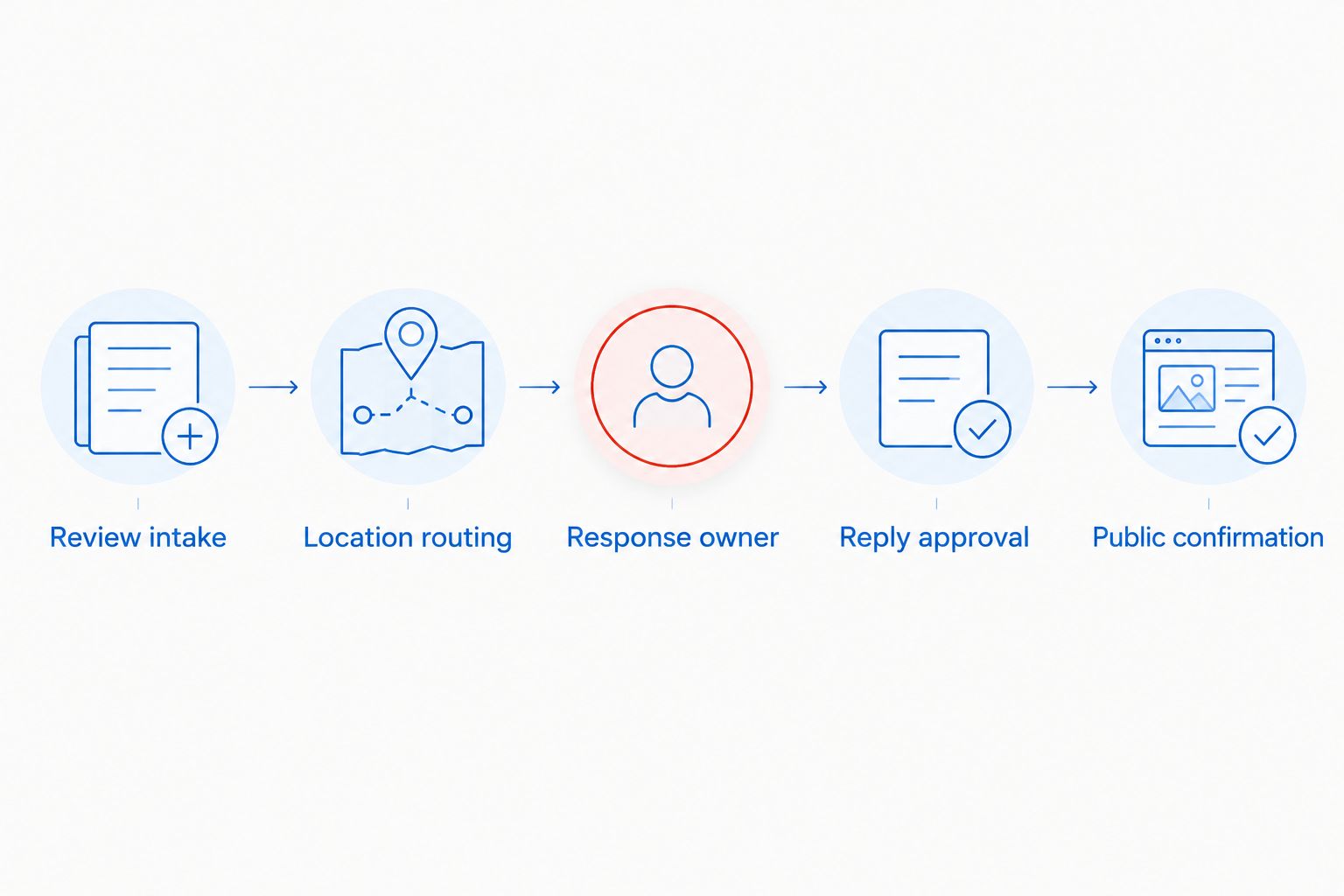
Keep alerts selective. Notify the assigned owner when action is required, and escalate unresolved work to a manager instead of sending every notification to the whole company.
Reply testing and public confirmation
Test the complete workflow with an existing genuine review that needs a response. Do not create a fake customer review to test the connection.
- Open the same review in Google and in your reputation platform. Check the location, review text, rating, and any existing business reply before drafting.
- Write a response that addresses the customer’s point without exposing private information. For disputes, acknowledge the concern and direct the customer to an established private communication channel.
- Approve and publish the reply through the platform if its integration supports publishing. If it only supports monitoring, publish directly through Google and record completion in your queue.
- Inspect the review publicly on Google to confirm that the reply appears under the correct business. Check the platform’s status afterward rather than assuming a completed task equals a published reply.
Expected result: The correct review has the intended public response, and the internal queue shows the completed action. Keep the test record in your 2026 setup checklist.
For the first 7 business days, review the queue each business day and compare completed replies with Google. This recommended rollout check catches routing mistakes before you expand the workflow.
Reopen a task whenever a review changes
An edited review is an adjacent workflow, not just another new-review notification. A customer can change the rating or wording after the original response, leaving your old reply out of step with the current feedback.
If your platform supports updated-review detection, configure an update to reopen the existing review task and notify its owner. Preserve the existing review identity rather than creating a second response task for the same review.
Use this sequence:
- Check the updated review text and rating against the previous version when that history is available.
- Read the existing public response and decide whether it still addresses the customer’s feedback.
- Submit a revised response for approval only when a change is necessary.
- Confirm any approved revision publicly and close the reopened task.
Best for: Businesses where customer issues continue after the first reply. The benefit is continuity; the limitation is that update detection and review history depend on the platform’s supported functions.
If update detection is unavailable, include previously answered reviews in your manual checks. Do not claim the connection covers edits until that behavior has been confirmed.
Troubleshooting
The correct location is missing
The authorizing account often lacks access to that profile or is the wrong Google account. Check People and access on the intended Business Profile, accept any outstanding invitation, and repeat authorization with the correct account.
Do not create a duplicate Google profile to make it appear in the location picker. Resolve access to the existing profile.
Authorization succeeds but reviews do not appear
Check the selected location, initial import status, and any filters hiding older or answered reviews. Compare a specific review visible on Google with the platform’s queue and inspect the platform’s connection error details.
If the problem persists, contact the provider with the location identifier and error details. Exclude customer-sensitive information from support screenshots.
A reply cannot be published
Confirm that your account can reply directly on Google and that the integration supports publishing, not just importing. Then check whether the draft still needs internal approval or whether the provider reports a permission error.
If authorization has expired or been revoked, reconnect through the official flow. Do not repeatedly submit the same reply while publication status is uncertain.
The same review creates duplicate tasks
Check whether the profile is connected to multiple internal records or parallel automation rules. Keep one review intake path and use the review identifier to match existing tasks when the platform supports that control.
Assign one public response owner. Separate assignments for monitoring and replying otherwise create avoidable overlap.
Alerts stop after a staffing change
Check whether the departed employee authorized the connection and whether their Google access was removed. Reauthorize with a current designated account, then verify review intake and reply publishing separately.
Update backup ownership and notification recipients as part of offboarding. Removing access without replacing the workflow owner leaves an operational gap.
Customize your workflow
Once monitoring and replies work, connect reputation management to service improvement. Group feedback into practical themes such as scheduling, communication, billing, and service quality, then assign recurring issues to the person who controls the underlying process.
Keep review requests separate from complaint handling. Google’s fake engagement policy prohibits incentives for reviews and selectively soliciting positive reviews; use a consistent, neutral request process rather than inviting only satisfied customers.
Build that process with the customer review generation strategy guide. Trifecta Business Group’s digital marketing and consulting services provide business-growth support; the software connection itself still depends on your chosen platform.
Set a recommended 30-day review of ownership, unresolved tasks, and recurring complaint themes. For your 2026 operating plan, track response activity separately from sales outcomes so you do not mistake more replies for proven revenue growth.
FAQ
How do I connect Google Business Profile to reputation management?
Start the Google connection inside your reputation platform, authorize an account with access to the Business Profile, and select the correct location. Test review import, task assignment, and public reply confirmation before expanding automation.
Do I need to be the Google Business Profile owner?
Owner or manager access is needed to manage the profile’s reviews. Keep primary ownership with the business and confirm that the authorizing account can reply directly on Google before connecting.
Can I connect several business locations?
You can connect several locations when your platform supports them and your Google account has the necessary access. Map each Google profile to a distinct internal location and assign a response owner for each.
Will connecting the profile automatically reply to reviews?
Connecting a profile does not by itself establish an automatic reply policy. Review import, notifications, and reply publishing are separate functions; enable only the functions you have verified and approved.
Why are my Google reviews missing from the dashboard?
Check account access, location selection, import status, and dashboard filters first. Compare a specific review visible on Google with the platform’s records before reconnecting or opening a support request.
Can reputation management remove a negative Google review?
A reputation management connection cannot remove a review simply because it is negative. Report reviews that violate Google’s policies and respond constructively to legitimate customer feedback.
Does Trifecta Business Group provide reputation management software?
Trifecta Business Group is a business consulting firm offering digital marketing, funding solutions, and strategic consulting. Use a reputation platform’s documented Google integration for the technical connection and keep business ownership of the profile.
One last thing
The most useful test is a public reply check, not a green connection indicator. Authorization proves access; only a confirmed response proves that the review workflow reached the customer.
Before expanding to another location, ask the backup owner to complete the process. If the workflow depends on one person’s memory, document it before adding more automation.
Related guides
- Reputation management for small business owners
- How to improve local SEO rankings for a small business
- How to build a digital marketing strategy for a small business
Plan funding for your next growth step
Apply for business funding as you plan your marketing and operational priorities.
Does applying affect my credit? +
Trifecta Business Group requires no hard credit pull, which does not affect your score. Any hard pull is explained before it happens.
How do I know which funding option fits? +
Start with what the money needs to do, how fast you need it and how you want to repay. Our comparison tool and advisors can help match the program.
Planning your timing
See this month's commercial rate benchmarks before you borrow
Our Small Business Capital & Formation Index tracks the Prime Rate, SBA rate caps, realistic cost ranges by funding type, and new business formation pressure state by state — updated every month.
What are you trying to fund?
Compare flexible working-capital options
Start with working capital and a line of credit, then compare payment structure and speed.
Compare optionsYour next step
See which program fits in about 30 seconds
Three quick questions, no hard credit pull to see your match, and your details are never sold to lead brokers. Commercial financing only — approval is never guaranteed.
Free Trifecta tools
Put this article to work for your business
Keep learning with Trifecta Business Group