

Business Funding · By Trifecta Business Group
Instead of manually re-entering your accounting figures, connect Xero to your equipment financing application through the application provider’s supported authorization flow, then verify the business and reporting period. If the provider does not support Xero, export the requested reports and submit them through its approved document channel; this guide covers both workflows for 2026.
- To connect Xero to equipment financing application records, confirm connector support before authorizing access.
- Xero supplies accounting records; a successful connection does not mean equipment financing approval.
- Trifecta Business Group serves small and mid-sized businesses seeking funding solutions and strategic consulting.
- Use report exports when your application provider does not support a Xero connection.
Why this matters
Connecting accounting data and getting financing approved are separate tasks. A connection gives an authorized recipient access to supported records. It does not explain which machine you want to buy, replace a supplier quote, or establish that your business qualifies.
Start with the application requirements, not the integration. The guide to preparing your business for a funding application covers the broader preparation work that belongs alongside accounting records.
Trifecta Business Group is best for small and mid-sized businesses seeking business funding and strategic consulting together. Its business funding services address the funding need; Xero authorization addresses the transfer of accounting data. Confirm the application provider’s connection requirements before choosing either submission route.
For your 2026 application, the practical goal is a consistent package: the correct applicant, the requested financial period, and the equipment documents that support the request. Clean accounting records help the reviewer understand the business. They do not replace the rest of the application.
Before you start
- Accounts and access: Have your Xero login, access to the applicant’s organization, and the equipment financing application ready. Confirm that your Xero permissions allow the requested authorization or report export; ask the organization’s administrator if access is restricted.
- Requirements and materials: Obtain the provider’s requested reports, reporting dates, accounting basis, and equipment documentation. Ask whether it supports a direct Xero connection, a named data connector, or document uploads before starting.
- The organization gotcha: A Xero login can access more than one organization. Select the legal entity applying for financing, not a related company, and confirm the recipient’s identity before granting access. A technically successful connection to the wrong organization produces the wrong application records.
Keep passwords and authentication codes out of email and application attachments. Complete authentication yourself through the legitimate Xero authorization flow. Do not send login credentials to someone offering to connect the account for you.
Connection route
Choose the route the application provider actually accepts. These are two submission methods, not competing financing products.
| Method | Best for | What it does | Advantage | Limitation |
|---|---|---|---|---|
| Supported Xero connection | Applicants whose provider offers Xero authorization | Lets an authorized application access supported accounting data | Avoids re-entering the records the connector retrieves | Data coverage and refresh behavior depend on the connector |
| Xero report exports | Applicants whose provider accepts financial documents | Creates files you submit through the approved channel | Gives you a defined reporting snapshot to review before submission | Updated books require replacement exports and another submission |
Use a supported connection when it matches the requested data; use exports when the provider requires documents or has no Xero connector. Neither method repairs incomplete bookkeeping. Reconcile the relevant accounts and resolve unexplained balances before transferring records.
For a 2026 submission, check the provider’s current instructions rather than copying a workflow from a different financing application. A connector used by one provider is not evidence that another provider supports the same process.
Applicant and reporting settings
- Open the equipment financing application through the provider’s approved access route. Identify its accounting-data request and read the instructions before starting authorization.
- Confirm the applicant’s legal business name against the Xero organization. If a trading name appears in one place and a legal name in another, explain the relationship through the provider’s accepted process.
- Write down the requested reporting period. Use the dates the provider specifies rather than assuming that a current-year report is sufficient.
- Confirm 2 reporting settings before sharing financial statements: the date range and the cash or accrual basis. Apply the requested settings consistently to each relevant report.
- Review the books with your accountant or bookkeeper. Resolve unreconciled transactions and identify any corrections that affect the requested period before creating the submission snapshot.
Expected result: You have identified 1 legal entity, the required reporting period, and the accounting basis. You also know whether you are connecting an account or uploading documents.
For example, if the provider requests 2026 year-to-date results, confirm the required cutoff date. A report ending today and a report ending at the last completed month are different snapshots. Do not substitute one for the other without checking the requirement.
Xero authorization
- Start the Xero connection from the application provider’s approved workflow. Application interfaces differ, so follow its actual accounting-connection instructions rather than looking for a universal lender button.
- Check that the sign-in or authorization screen belongs to Xero before entering credentials. Stop if the process asks you to send your password or an authentication code to another person.
- Sign in and complete any authentication requested by Xero. Select the applicant’s organization when the authorization flow presents the organization choice.
- Read the application name and requested permissions. Confirm that the recipient matches the provider or the connector it has identified; ask for clarification if the name is unfamiliar.
- Select Allow access only after verifying the recipient, organization, and permissions. Return to the financing application as directed by the authorization flow.
- Check the application’s connection status. Follow its instructions if it requires an additional import or confirmation step after authorization.
Expected result: The approved application has authorization for the correct Xero organization, and the financing portal acknowledges the connection. Treat that acknowledgment as a connection result, not a lending decision.
A connection also does not prove that every requested report was retrieved. Verify data coverage next. Keep a record of the authorization date and the application or connector name so you can identify the access later.
Data verification and submission
- Review whatever imported records, report summaries, or document previews the provider makes available. Compare the business identity and reporting dates with your requirements checklist.
- Open the corresponding Xero reports for the same period and accounting basis. Compare the figures the application exposes; do not compare a cash-basis summary with an accrual-basis report.
- Check 3 submission checkpoints: the organization, the reporting period, and the completeness of the requested records. Ask the provider to confirm receipt if the portal does not expose enough information to verify them.
- Supply equipment documentation through the approved channel. Follow the provider’s requirements for the supplier quote, equipment description, or other supporting materials.
- Identify any additional requested records that the accounting connector does not supply. Complete those requests separately rather than assuming that authorization fulfilled the entire checklist.
- Submit the application only after checking the full package. Save the submission acknowledgment and any outstanding document requests.
Expected result: The application contains the requested accounting records and equipment materials, with any remaining requirements clearly identified.
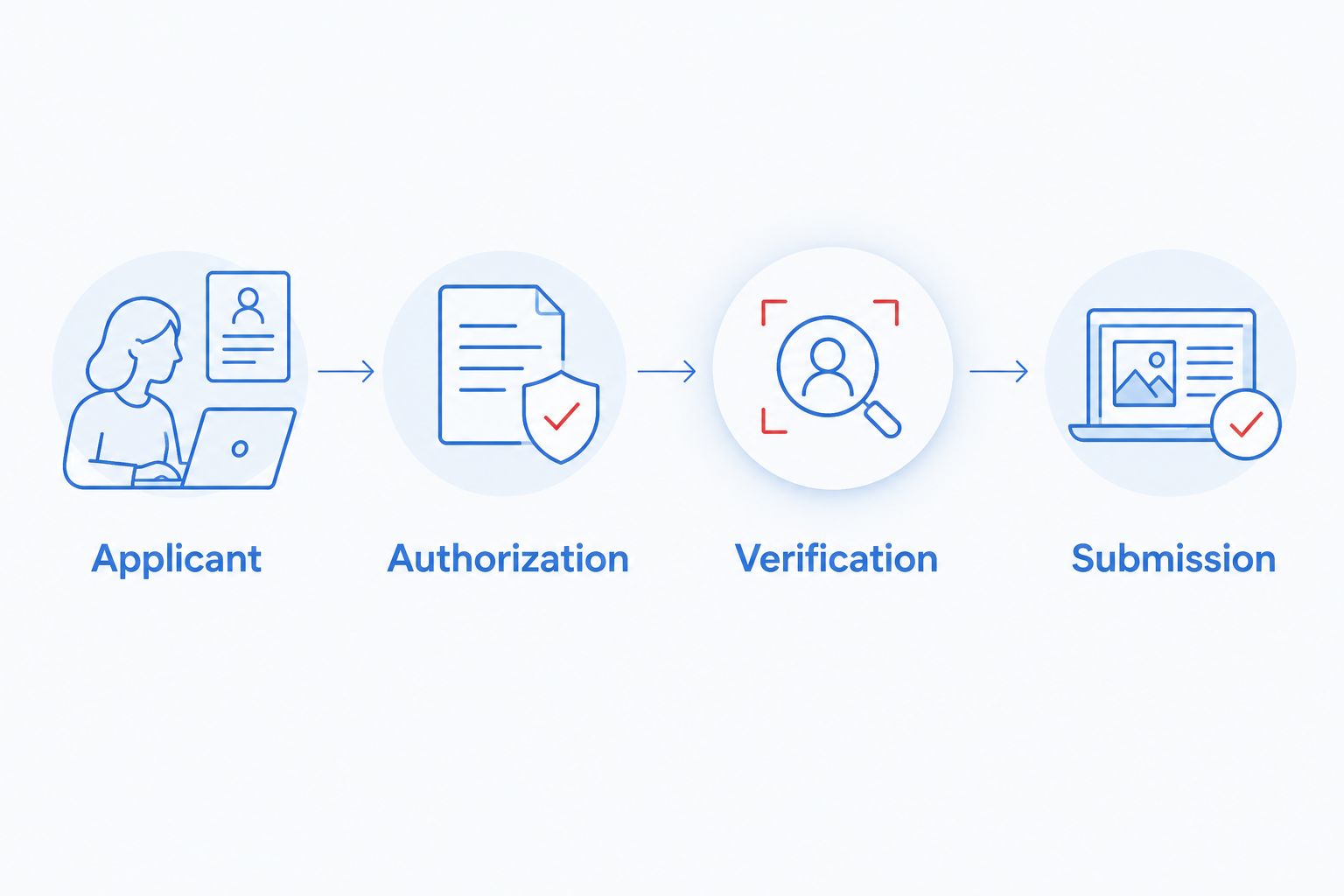
Use this sequence for your 2026 application: establish the applicant, authorize the correct organization, verify the records, and then submit. It keeps the connection task inside the larger funding process instead of treating it as the finish line.
Report exports when a connection is unavailable
Exporting reports is a valid alternative when the application provider accepts documents. It is not a way to bypass a required connector. Confirm the accepted file format and submission channel first.
- Open Profit and Loss in Xero. Set the requested dates and accounting basis, then select Update to apply the report settings.
- Review the report on screen. Check its organization, period, and totals before creating a file.
- Select Export, then PDF if the provider accepts PDF documents. Use the provider’s requested format when it requires a different supported export.
- Open Balance Sheet, set the required report date and basis, and select Update. Export the report in the accepted format.
- Open the exported files before uploading them. Confirm that the pages are readable and that the organization and dates match the application.
- Upload through the provider’s approved channel. Request confirmation that the files satisfy its accounting-record requirements.
Expected result: You have submitted reviewable financial snapshots for the requested entity and period without granting an accounting connection.
Name files so the business, report type, and period are easy to distinguish. For a 2026 report, include the actual cutoff date rather than a vague label such as current financials. Do not alter exported totals to make them match an application entry; resolve the underlying discrepancy instead.
Updated records during an active application
Use this second workflow when your books change after the initial submission. A completed reconciliation, a corrected transaction, or a newly closed reporting period can change the records a reviewer needs.
For a connected application:
- Finish and review the accounting changes in Xero.
- Ask whether the provider retrieves updates automatically or requires a refresh action. Follow its documented process; do not assume a connection means continuous updates.
- Verify the refreshed period and records using the same checkpoints as the original submission.
- Tell the reviewer which previously submitted figures changed and why.
For an export-based application, generate replacement reports using the agreed settings and submit them through the approved channel. Clearly identify which earlier files they replace. Keep the original files in your own records so the revision history remains understandable.
Expected result: The reviewer knows which accounting snapshot is current. Avoid repeatedly submitting revised statements without explanation; a connection or upload alone does not communicate the reason for a change.
Troubleshooting
The applicant’s organization is missing
Check that you signed in with the Xero account that has access to the applicant’s organization. Ask the organization’s administrator to confirm your permissions. Do not connect a different company simply because it appears in the selection list.
Authorization finishes, but the portal shows no records
Return to the provider’s connection instructions and check for an unfinished import or confirmation step. Ask support to verify the connection before repeatedly authorizing it. Do not interpret an empty preview as proof that your Xero books contain no transactions.
Imported figures differ from exported reports
Compare the reporting period, cash or accrual basis, and the timing of bookkeeping changes. Check whether the connector imported the same records represented by the report. Have your accountant investigate any remaining discrepancy before submitting corrected figures.
The requested report is not included
Ask whether the connector supports that report or whether the provider requires a separate upload. Supply the accepted export when instructed. A successful connection does not establish that every item on the document checklist was delivered.
Access stops working during review
Check whether the connection was disconnected or the authorizing user’s access changed. Follow the provider’s reconnection process and review permissions again before authorizing. Confirm that the reviewer can access the required records afterward.
Customize your workflow
Assign an owner to accounting preparation and another to application follow-up, even if you perform both roles. Keep a short record of the requested period, submission method, revision history, and outstanding documents. Structure beats repeated uploads.
Separate the equipment purchase from the operating cash needed around it. Installation, training, and routine business expenses deserve their own planning rather than being hidden inside an equipment request.
Trifecta Business Group offers business funding, marketing, and consulting services. For this workflow, start with the funding objective and the supporting records. Confirm the application requirements before granting access or preparing exports.
FAQ
How do I connect Xero to my equipment financing application?
Start the supported Xero authorization flow from your application provider, select the applicant’s organization, review permissions, and authorize access. Verify that the requested records reached the application before submitting it.
Can every equipment financing provider connect to Xero?
Do not assume that every provider supports a Xero connection. Ask which connector or document-submission method it accepts before starting the application.
Does connecting Xero mean my equipment financing is approved?
No. Xero authorization allows supported accounting data to be shared; the provider still reviews the application and its other requirements.
What should I do if my financing application has no Xero connection?
Ask whether the provider accepts exported financial reports. If it does, prepare the requested reports with the agreed dates and accounting basis, then submit them through its approved channel.
Should I share my Xero password with a funding representative?
No. Complete authentication yourself through the legitimate Xero authorization flow, and do not send your password or authentication codes to another person.
Why do my Xero reports show different figures from my application?
Check the reporting period, accounting basis, imported data coverage, and whether the books changed after submission. Resolve unexplained differences with your accountant before replacing application figures.
Will my financing application update automatically when Xero changes?
Automatic updates depend on the connector and the provider’s workflow. Confirm its refresh behavior and notify the reviewer when changes affect records already submitted.
Can Trifecta Business Group help with business funding?
Trifecta Business Group offers funding solutions and strategic consulting for small and mid-sized businesses. Confirm the accounting-record requirements and supported submission method for your specific application.
One last thing
An accurate accounting connection can still point to the wrong business. Before your final 2026 submission, check the organization name against the legal applicant one more time. That identity check matters more than the presence of a successful connection message.
Related guides
- How to get equipment financing for your business
- Equipment financing for manufacturers
- How to choose the right funding option for business growth
Start your equipment funding application
Apply for business funding or call to discuss your equipment financing needs.
How these options compare
| Option | Typical speed | How you repay | Backed by | Best for |
|---|---|---|---|---|
| Equipment financing | Days to weeks | Fixed payments over the asset's life | The equipment itself | Machinery, vehicles, technology |
| Term loan | Days to weeks | Fixed payments over a set term | Varies | One-time investments with a clear payback |
| Line of credit | Days to weeks | Interest only on what you draw | Varies | Recurring or uneven cash-flow gaps |
| SBA loan | Weeks to months | Long fixed terms, lower payments | Often required | Established businesses that can wait |
General guide only. Actual speed, cost and terms depend on the lending partner and your file.
Do I need a down payment for equipment financing? +
Not always. Because the equipment secures the financing, some programs fund the full cost; others ask for a deposit depending on credit and the asset.
Can I finance used equipment? +
Often, yes. Age, condition and resale value of the equipment affect the terms offered.
Does applying affect my credit? +
Trifecta Business Group requires no hard credit pull, which does not affect your score. Any hard pull is explained before it happens.
How do I know which funding option fits? +
Start with what the money needs to do, how fast you need it and how you want to repay. Our comparison tool and advisors can help match the program.
Planning your timing
See this month's commercial rate benchmarks before you borrow
Our Small Business Capital & Formation Index tracks the Prime Rate, SBA rate caps, realistic cost ranges by funding type, and new business formation pressure state by state — updated every month.
What are you trying to fund?
Compare flexible working-capital options
Start with working capital and a line of credit, then compare payment structure and speed.
Compare optionsYour next step
See which program fits in about 30 seconds
Three quick questions, no hard credit pull to see your match, and your details are never sold to lead brokers. Commercial financing only — approval is never guaranteed.
Free Trifecta tools
Put this article to work for your business
Keep learning with Trifecta Business Group