

Business Funding · By Trifecta Business Group
Instead of manually copying HubSpot contact details into a funding application, connect a qualified-contact trigger to an authorized draft-creation action so your team reviews the information before submission. To sync HubSpot leads to a funding application in 2026, first confirm that the receiving system supports a connector or documented API; a signup link alone does not establish that capability.
- Sync HubSpot leads to funding application drafts only through a supported connector or documented API.
- HubSpot contact creation is not evidence that a business owner authorized a funding application.
- Trifecta Business Group offers business funding and consulting, not a confirmed HubSpot integration in this guide.
- Without a supported application connection, automate a review task instead of submitting applicant information.
Why this matters
A CRM record and a funding application serve different purposes. HubSpot stores relationship information; a funding application collects information for a specific financing request. Moving data between them requires permission, field mapping, and a clear owner.
Trifecta Business Group is best for small and mid-sized companies seeking business funding and strategic consulting. Its business funding services are distinct from the technical connection described here. Explore Trifecta Business Group for the firm's funding, marketing, and consulting scope.
The useful outcome is a prepared draft or a clearly assigned application task—not an automatically submitted request. Your 2026 workflow should remove repeated typing while preserving the applicant's review, required disclosures, and final submission decision.
Before you start
- Accounts and access: Have HubSpot access, permission to connect an automation platform such as Zapier, and permission to create the properties or tasks your workflow needs. Confirm that your account exposes the selected trigger and action before building around them.
- Destination and materials: Obtain the receiving application's documented connector or API instructions, required fields, authentication requirements, and rules for creating drafts. Prepare an approved field list and identify who reviews each record.
- The setup gotcha: A public application URL is not an API endpoint. If the receiving system does not document draft creation, stop the direct-sync setup and use the review-task workflow below. Never send financial information to a guessed endpoint.
Before connecting anything, use the guide to prepare your business for a funding application. Preparation comes before automation: the connection cannot correct information that was never collected or verified.
Choose the workflow that matches your access
Use these 2 workflow paths as implementation choices, not as claims about a particular funding provider's technology. Both keep a human review point; only the first transfers data into an application draft.
| Workflow | Best for | Benefit | Limitation |
|---|---|---|---|
| Application draft sync | Teams with a supported destination connector or documented draft API | Reuses approved CRM information in a reviewable application record | Requires destination access, documented mappings, and duplicate protection |
| HubSpot review task | Teams without a supported destination connection | Assigns the application handoff without exporting financial information | The applicant or authorized reviewer still enters application information |
Choose application draft sync only after confirming the receiving system's capabilities. Choose the review-task path when that confirmation is absent. Trifecta Business Group's funding services do not, by themselves, establish a supported automated submission route.
Contact trigger configuration
The following setup uses Zapier as the automation layer and HubSpot contacts as the source. Connector options change, so select the named event only when it appears in your connected account; do not substitute an unrelated event just to finish the setup.
Define the source record
- Open HubSpot CRM, then Contacts, and identify the contact associated with the funding request. Confirm which company the request concerns before mapping business information.
- Review the standard First name, Last name, and Email properties. Confirm that these identify the applicant contact rather than an unrelated employee or marketing subscriber.
- In HubSpot settings, open Properties and use Create property for any missing workflow controls. Suggested custom labels are Funding review status, Funding sync status, and Funding destination ID; these are labels you create, not built-in HubSpot fields.
- Define what makes a record ready. Require an identified business, the necessary contact information, and a documented basis for sharing the selected information with the destination.
Expected result: You have a contact record with explicit readiness controls. A marketing lead does not become application-ready merely because its email address exists.
Connect the new-contact trigger
- Create a Zap and select HubSpot as the trigger app.
- Select New Contact when that event is available, connect the approved HubSpot account, and use Test trigger to load a controlled sample record.
- Inspect the returned properties. Confirm that the readiness controls and required source values are present before adding the destination action.
- Add Filter by Zapier and allow the workflow to continue only when your approved readiness conditions are satisfied. Exclude records already marked as synchronized.
Expected result: A newly created, ready contact proceeds; an incomplete contact stops. This trigger covers new contacts only—use the update variant later in this guide for contacts that become ready after creation.
Destination mapping and duplicate controls
Treat field mapping as a business decision, not a copy-everything exercise. For your 2026 implementation, document what each destination field means and which source record supplies it. Share only what the authorized draft requires.
Map the application draft
- Select the receiving system's supported draft-creation action. If using its API, follow the published authentication and request instructions exactly; do not derive an endpoint from its website address.
- Map contact identity and business identity separately. A contact's name is not a company's legal name, and a marketing description is not a verified business activity.
- Map financial information only when the source value has the meaning required by the destination. Keep units and reporting periods consistent; do not relabel monthly revenue as annual revenue.
- Leave unsupported or unverified fields for applicant review. Do not invent values to satisfy required fields or treat blank values as zero.
- Configure draft creation rather than final submission when the destination supports that distinction. If it exposes only a submission action, pause and confirm the authorization and review process before using it.
Expected result: The receiving draft contains approved, correctly interpreted values. Unverified information remains visibly unresolved instead of being disguised as complete.
Establish record identity
- Choose the application identity according to the receiving system's documented rules. Include the business and funding request where needed; email alone is not a safe business-application key.
- Before creating a draft, use the destination's supported lookup or duplicate-control mechanism. If neither exists, route the record for review rather than repeatedly creating applications.
- After successful creation, store the returned destination identifier in Funding destination ID and update Funding sync status using Update Contact when that HubSpot action is available.
- Record failure separately from success. Do not mark the contact synchronized simply because the trigger ran.
Expected result: Reprocessing the same request does not create another draft. Use 1 draft per business request as your workflow rule, while allowing separately authorized requests to remain distinct.
Review handoff and launch checks
Your handoff should make the next action obvious: inspect the draft, resolve missing information, and obtain the applicant's final review. Keep confidential documents out of task titles and routine notifications.
Configure the reviewer handoff
- Add a HubSpot Create Task action when it is available in your connector. Associate the task with the source contact using the action's supported association fields.
- Assign the reviewer and describe the required next action. Suggested task text is Review funding draft; it is a custom task description, not a standard system status.
- Include the destination record reference only where your access rules permit it. Never paste bank details, identity documents, credentials, or sensitive attachments into the task description.
- For the task-only path, omit destination creation entirely. Create a task to help the applicant complete the receiving application through its normal process.
Expected result: A named reviewer receives an actionable handoff. In the task-only workflow, no application data has been transferred to an unsupported destination.
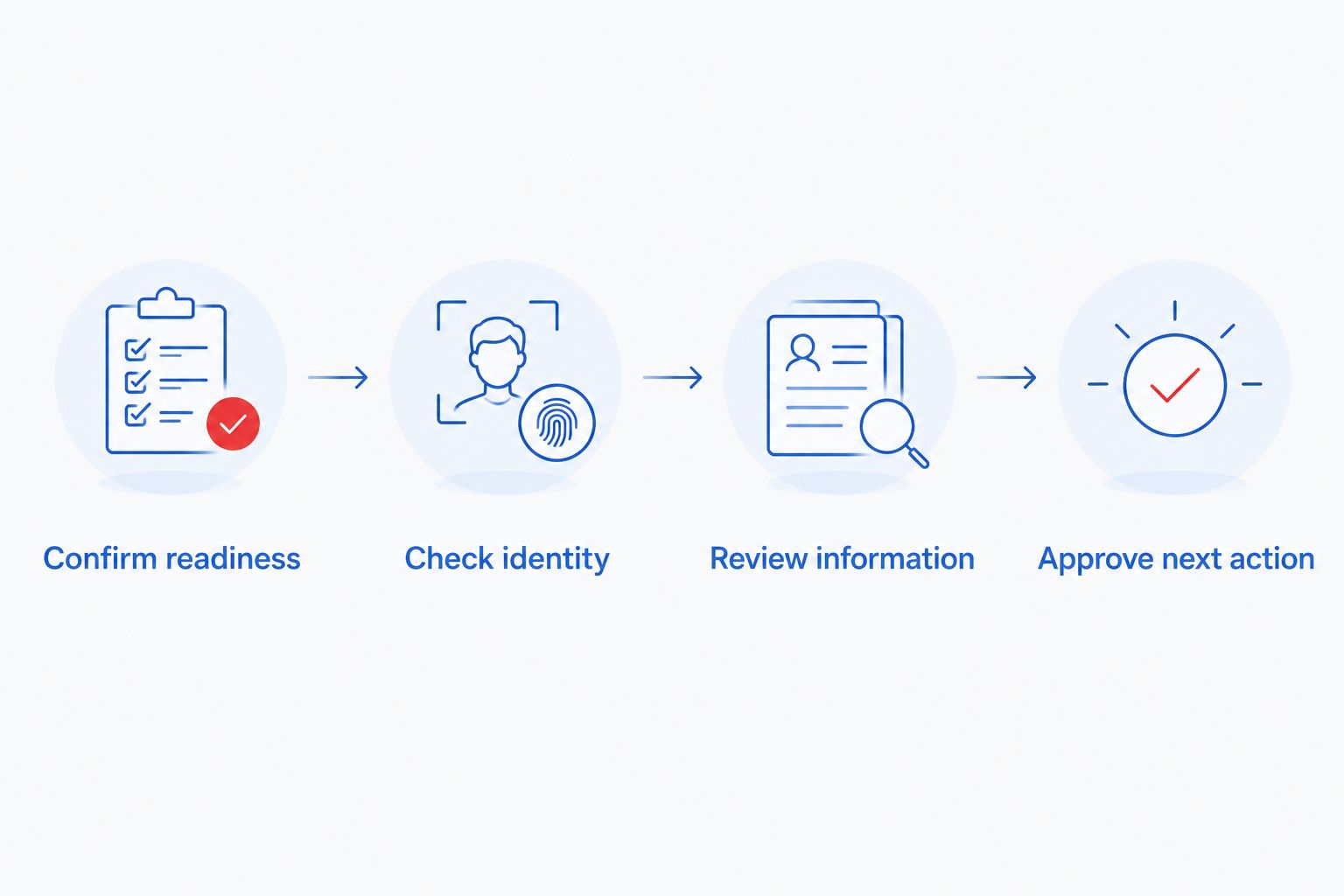
The review sequence stays the same whether you create a draft or assign a task: confirm readiness, check identity, review information, and approve the next action.
Test before enabling the workflow
Use 3 test contacts as a launch checklist: a ready record, an incomplete record, and a repeat of the same business request. These are recommended test cases, not a performance benchmark.
- Run the ready record and inspect the draft or task. Compare each transferred field with its source.
- Run the incomplete record. Verify that it stops before destination creation and leaves a clear reason for the reviewer.
- Replay the same request. Confirm that duplicate protection prevents another draft or review task.
- Inspect the automation's run history, correct mapping errors, and enable the workflow only after every test behaves as intended.
Expected result: Your 2026 launch has a verified success path, an incomplete-record path, and a repeat-run safeguard. Keep the test records identifiable so they cannot be mistaken for real applications.
Sync when an existing contact becomes ready
A new-contact trigger misses records that arrive incomplete and become ready later. Use an update-trigger variant when your intake process gathers information in stages.
- Create a separate workflow using HubSpot's New Contact Property Change event when your connector provides it.
- Select the custom Funding review status property as the watched property where the trigger supports that selection.
- Filter for your chosen ready value and require that Funding destination ID remains empty before creating a new draft.
- Reuse the approved mappings and duplicate checks. For existing drafts, use the destination's documented update action rather than its create action.
- Exclude submitted or locked applications from automatic changes unless the receiving system explicitly supports those changes and your process authorizes them.
Expected result: An existing contact enters the funding handoff when readiness changes. Updates to Funding sync status do not retrigger the readiness workflow.
Do not run both creation paths without shared duplicate controls. Otherwise, a contact created as ready can qualify for both the new-contact workflow and the property-change workflow.
Troubleshooting
The trigger runs, but no application draft appears
Inspect the filter result first, then the destination action's response. A stopped filter is different from a rejected request. Correct the missing readiness value, required field, or authentication issue shown in the run history before replaying the record.
Financial values arrive in the wrong format
Compare the destination's documented field type with the actual source value. Correct separators, units, and reporting periods in the mapping; do not solve a format error by changing the underlying financial meaning.
Repeated runs create duplicate drafts
Check whether the destination identifier was written back after the first successful creation. If creation succeeded but write-back failed, locate the existing draft before retrying. Repair the identity check so the next run finds that draft.
A property update causes repeated automation runs
Separate readiness changes from sync-status changes. Watch only the property that represents the approved business event, and filter out already processed requests. Do not monitor every contact update when your own workflow also updates the contact.
The receiving system has no supported integration
Use the task-only workflow. Do not automate browser submission or add guessed prefill parameters to the application URL. Trifecta Business Group's business funding application should be completed through its normal process unless a supported connection is separately confirmed.
Customize your workflow
After the basic handoff works, expand the controls—not the volume of copied data. Add an owner for exceptions, a documented rule for reopening a request, and a reconciliation check between CRM status and destination status.
For your 2026 operating procedure, distinguish draft created, review required, and submitted as separate custom states. Never let a successful data transfer stand in for an application submission, funding decision, or completed financing.
Keep marketing follow-up separate from application processing. A funding request does not automatically establish permission for unrelated promotional messages, and an applicant's review should not depend on a marketing campaign completing.
FAQ
Can I automatically sync HubSpot leads to a funding application?
Yes, when the receiving system provides a supported connector or documented API and you have authorization to transfer the selected information. Without that connection, automate a HubSpot review task rather than application data transfer.
Does Trifecta Business Group have a confirmed HubSpot integration?
This guide does not establish a supported HubSpot integration for Trifecta Business Group. Confirm the receiving application’s capabilities before configuring any direct data transfer.
Can I use an application signup link as an API endpoint?
No, a signup link is not evidence of an API endpoint. Use only the receiving system’s documented integration instructions, and do not add guessed prefill parameters.
What happens when an existing HubSpot contact becomes ready later?
Use a property-change trigger tied to your custom readiness property when your connector supports it. Apply the same authorization, field-mapping, and duplicate checks used for new contacts.
Should every new HubSpot lead become a funding application?
No, contact creation does not establish application readiness or permission to share applicant information. Require the identified business, necessary information, and an approved review process before proceeding.
How do I stop duplicate funding application drafts?
Use the receiving system’s documented lookup or duplicate-control mechanism and store its returned record identifier in HubSpot. Check for an existing request before creating another draft, including when retrying failed runs.
Does syncing a contact mean the funding application is submitted?
No, syncing contact information and submitting a funding application are separate actions. Track draft creation, applicant review, and submission separately, and never treat a transfer as a funding decision.
One last thing
Test the failure after success. Deliberately check what happens when the destination creates a draft but the HubSpot write-back does not complete. That gap is where an ordinary retry becomes a duplicate application unless your lookup finds the record already created.
Related guides
- How to choose the right funding option for business growth
- QuickBooks to SBA loan approval workflow
- How to build an email marketing strategy for customer retention
Start your business funding application
Take the next step in your funding process, or call to discuss your business needs.
How these options compare
| Option | Typical speed | How you repay | Backed by | Best for |
|---|---|---|---|---|
| Term loan | Days to weeks | Fixed payments over a set term | Varies | One-time investments with a clear payback |
| Line of credit | Days to weeks | Interest only on what you draw | Varies | Recurring or uneven cash-flow gaps |
| SBA loan | Weeks to months | Long fixed terms, lower payments | Often required | Established businesses that can wait |
| Merchant cash advance | Often days | Share of daily/weekly sales; priced with a factor rate | Future sales | Urgent needs, card-heavy businesses |
General guide only. Actual speed, cost and terms depend on the lending partner and your file.
Does applying affect my credit? +
Trifecta Business Group requires no hard credit pull, which does not affect your score. Any hard pull is explained before it happens.
How do I know which funding option fits? +
Start with what the money needs to do, how fast you need it and how you want to repay. Our comparison tool and advisors can help match the program.
Planning your timing
See this month's commercial rate benchmarks before you borrow
Our Small Business Capital & Formation Index tracks the Prime Rate, SBA rate caps, realistic cost ranges by funding type, and new business formation pressure state by state — updated every month.
What are you trying to fund?
Compare flexible working-capital options
Start with working capital and a line of credit, then compare payment structure and speed.
Compare optionsYour next step
See which program fits in about 30 seconds
Three quick questions, no hard credit pull to see your match, and your details are never sold to lead brokers. Commercial financing only — approval is never guaranteed.
Free Trifecta tools
Put this article to work for your business
Keep learning with Trifecta Business Group